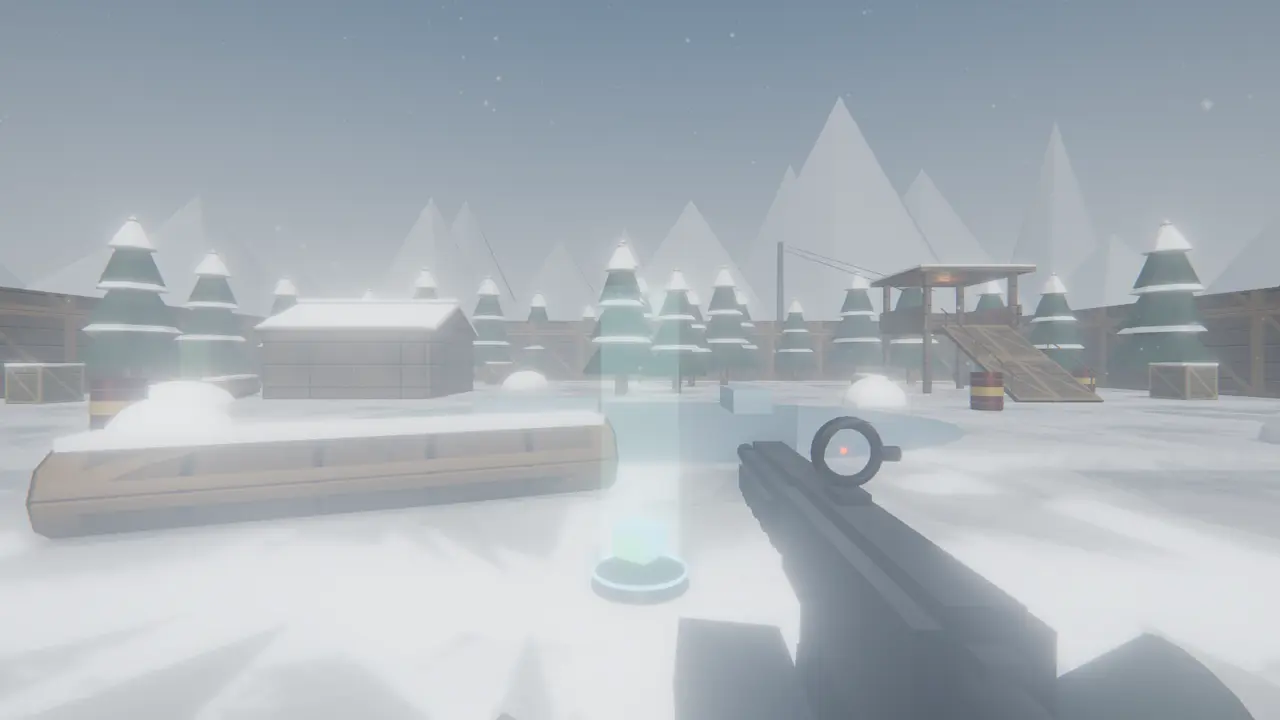
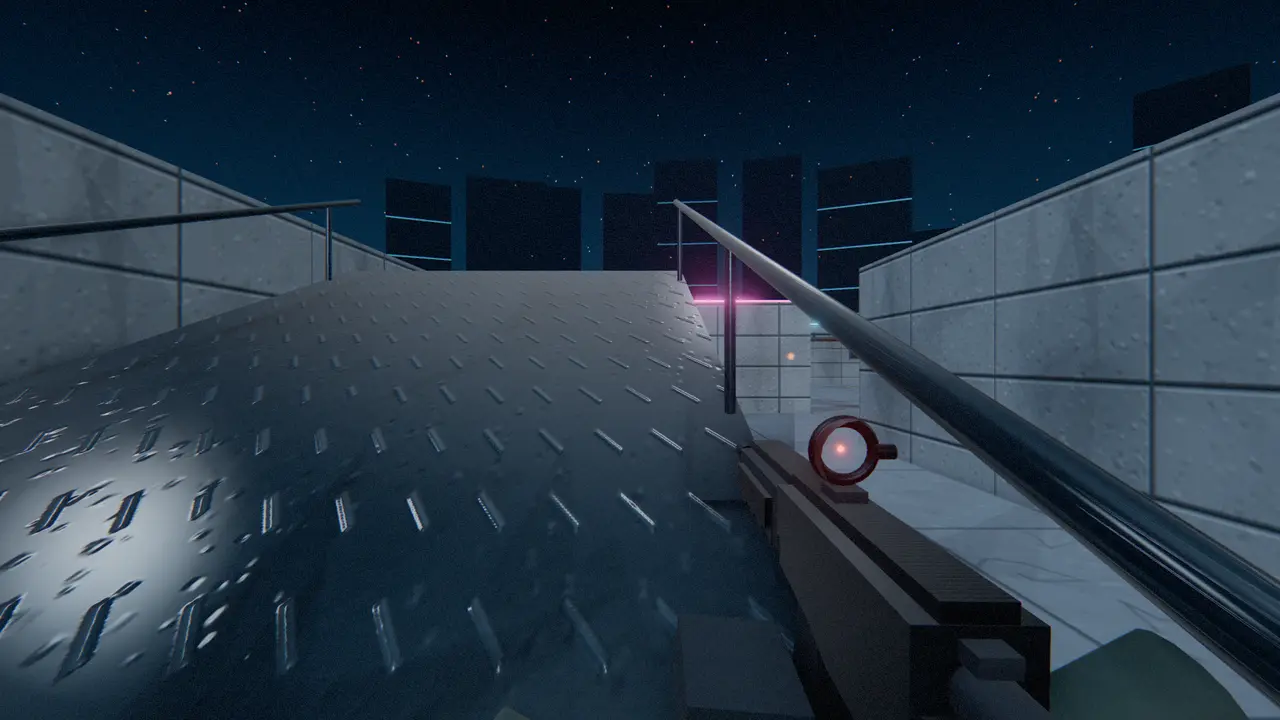
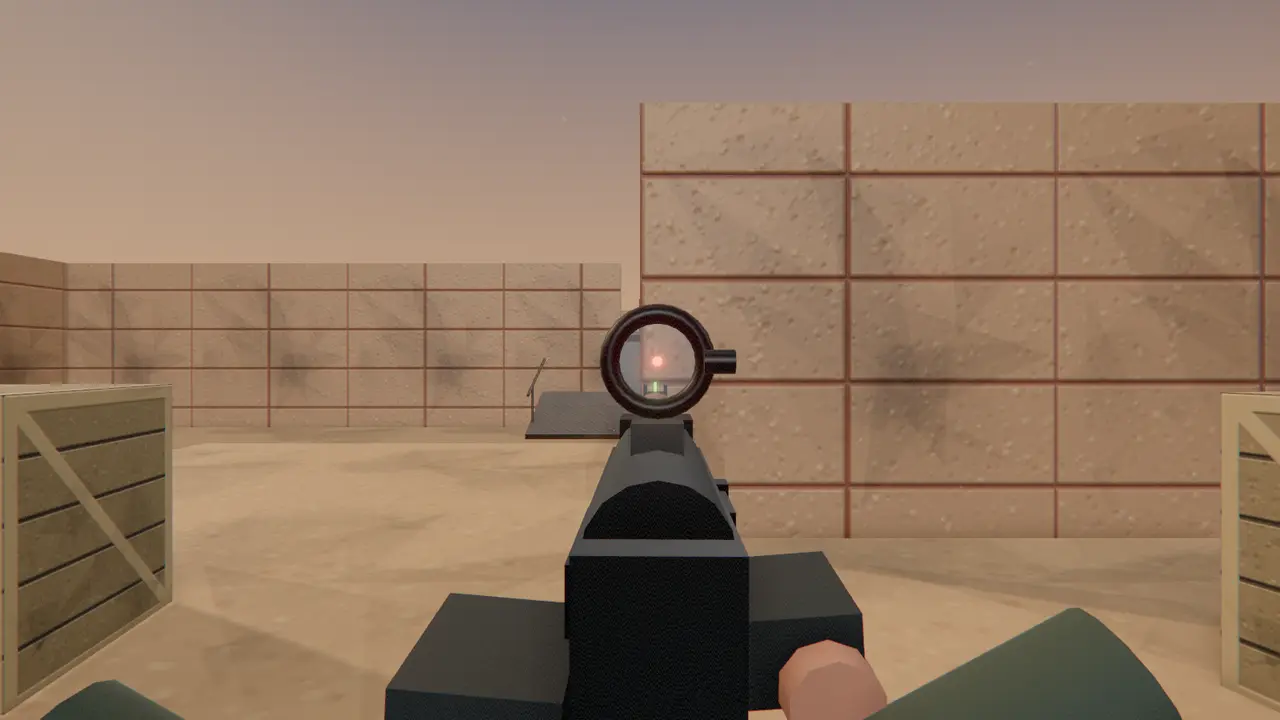
How to Play FPS Games in Your Phone’s Browser (Android & iPhone Guide)
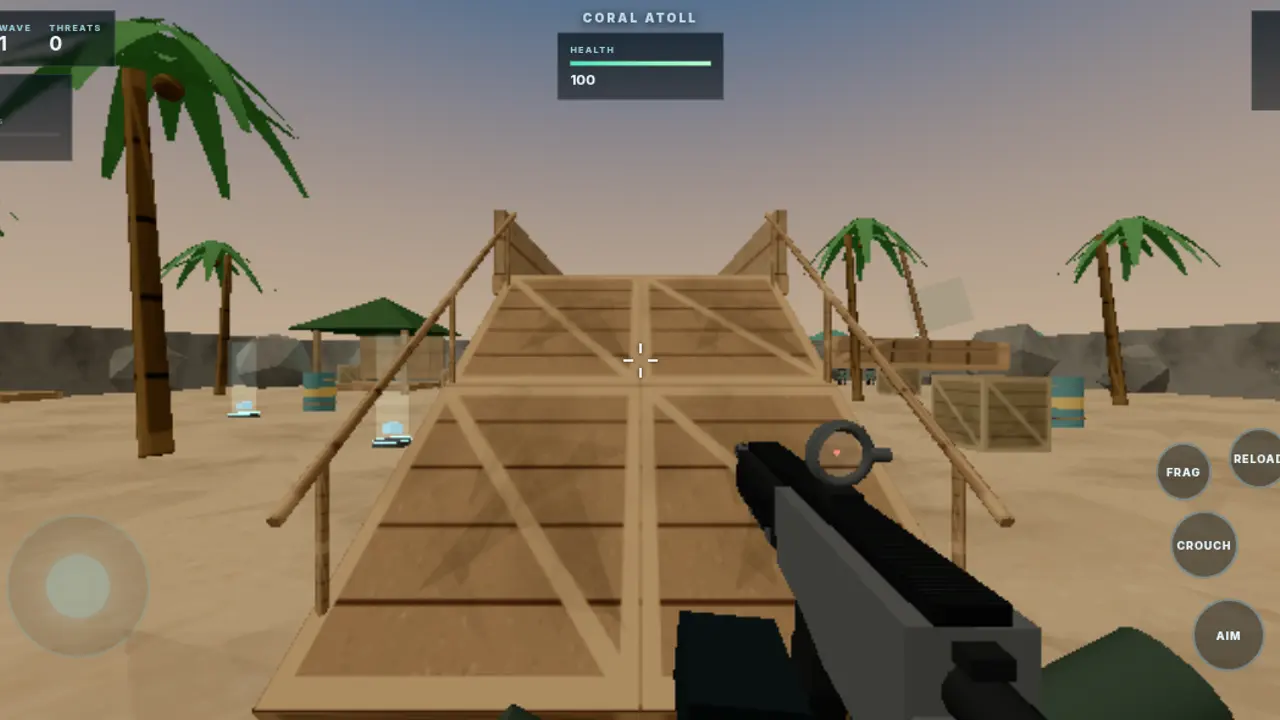
Browser shooters are no longer desktop-only. Modern phones have GPUs powerful enough to run 3D shooters in Chrome or Safari, and games like ZeroFront are designed with touch controls from the start. Here is how to get a smooth, playable experience — no app store required.
Why play in the browser?
- No install, no storage. Nothing to download, and updates arrive the moment you reload.
- Same game everywhere. Your account and progress follow you between your phone and your laptop.
- Instant matches with friends. Share a room code and they are in from any device.
Set up your phone
- Use an up-to-date browser. Chrome on Android and Safari on iPhone both support WebGL, which 3D browser games need.
- Turn your phone sideways. Shooters need landscape. ZeroFront reminds you if you start upright.
- Close other tabs and apps. Every background tab competes for memory and GPU time.
- Disable battery saver while you play. Power-saving modes often cap CPU and GPU speed.
- Use headphones. Footsteps and gunfire direction are a real advantage.
The in-game settings that matter
Most browser shooters have a few graphics options. In ZeroFront, these are the ones to look at on a phone:
- Graphics quality: Low. ZeroFront's Low preset uses a fast shading mode built for phone GPUs, and in our tests it costs about a third of the render time of the standard look.
- Frame rate cap: 60. A steady 60 feels better than a frame rate that jumps around. If your phone cannot hold it, a steady 30 is smoother than an unsteady 45.
- Dynamic resolution: On. The game lowers its rendering resolution during heavy moments to keep frames smooth, then raises it again.
- Performance readout. Turn it on to see your FPS and resolution in real time while you tweak.
Mastering touch controls
On a phone, the left thumb moves (a virtual stick) and the right thumb looks and shoots. A few habits make a big difference:
- Lower your look sensitivity at first. It is easier to make big turns with a second swipe than to correct overshooting.
- Try gyro aiming. ZeroFront can use your phone's motion sensor for fine aim — either all the time or only while aiming down sights.
- Use aim assist. ZeroFront's aim assist only applies to touch controls, never to mouse players, which keeps mixed lobbies fair.
- Aim down sights for long shots. Hip-fire is fine up close; at range, the tighter spread of ADS wins.
Fixing lag and stutter
Two different problems get called "lag":
- Low frame rate (choppy, slow-motion movement) comes from your phone's GPU. Lower the graphics quality, enable dynamic resolution and cap the frame rate.
- Network lag (shots registering late, players jumping around) comes from your connection. Move closer to your Wi-Fi router, avoid busy networks, and check the ping shown in the game's HUD.
Want to jump straight in? ZeroFront runs in any modern browser on desktop or phone — no download, no account.